Bring it to the nearest branch or call
- Vilnius Kareivių g. 11A +370 655 77057
- Kaunas Savanorių pr. 155 +370 639 69600
- Klaipėda Sausio 15-osios g. 13 +370 647 07741
- Šiauliai Gegužių g. 30 +370 682 29052
All branches are open Mon–Fri 9:00–18:00
A SEAT navigation update is needed when the factory system does not recognise new roads, roundabouts or bypasses. On this page you will find which map discs and SD cards suit your SEAT, how to identify your system and what the differences between the four variants are.
The biggest mistake is ordering a card without knowing the system version: externally, MediaSystem 2.0 and 2.1–2.2 look the same, but their cards are not interchangeable. Below you will find a simple way to check the version in a few seconds, the most common problems and answers to questions.
SEAT navigation update prices
The price depends on the type of your SEAT system and the media you choose.
| Service | Price | Warranty |
|---|---|---|
| SEAT navigation DVD discs for Lithuania and Europe (se1, RNS Mediasystem) | on request | – |
| SEAT navigation SD card for Lithuania and Europe (se2, se3) | on request | – |
| CD disc set for MediaSystem 2.0 with SD update (se2) | on request | – |
| DNS DX navigation CD discs (se4) | on request | – |
Most common SEAT navigation problems
Some complaints are not a malfunction, but outdated maps or unsuitable media. Here is what happens most often.
Why the navigation does not work in a SEAT car
Most often the cause is an unreadable disc or SD card, an unsuitable map version or a temporary system glitch. Less often, it is a GPS antenna or screen fault.
What you can check yourself: Switch the engine off and start it again, and check that the card is inserted all the way.
We determine the system type and check the media, then select the suitable map set.
SEAT navigation does not detect the SD card
The card may be intended for a different system version, or it may be damaged or have a corrupted file structure. MediaSystem 2.0 and 2.1–2.2 cards are not interchangeable, even though the systems look the same.
What you can check yourself: Check the version: SETUP for 5–10 seconds, VERSIONS. If 3 lines are shown – 2.0, if 6 – 2.1–2.2.
We select the card according to the actual system version.
Navigation shows outdated roads, with no new roundabouts or bypasses
The maps have not been updated since purchase. The road network in Lithuania keeps changing, so an older map version does not recognise new sections.
What you can check yourself: In the VERSIONS menu or the information section, look at the map year and compare it with the latest version.
We offer the latest SD or DVD sets; Lithuania is covered in detail in them.
Navigation does not show Lithuania or shows only the main roads
Only the first part of the maps (SD1, DVD1) is inserted, which does not include Lithuania. Detailed Lithuania is in the second set (SD2, DVD2), and in the se2 system also on disc CD09 (Poland, Lithuania, Latvia, Estonia).
What you can check yourself: Check which card or disc is inserted and whether it is marked as 1 or 2.
We select the second set or, for the se2 system, CD09.
The disc cannot be read, or the navigation asks you to insert a disc
The disc is scratched or dirty, the reader is working poorly, or the disc is incorrect (the code does not match the system).
What you can check yourself: Check that the disc matches your system code (se1–se4). Do not dismantle the radio or the reader yourself.
We replace the disc with the correct one or, if the reader is suspected, we check the system.
Navigation cannot find a GPS signal
The signal is weak in enclosed places, in forests among tall trees or under overpasses. If the problem is constant, the antenna or its cable may be damaged.
What you can check yourself: Wait a few minutes in an open area. Check that no metallized film has been stuck to the windscreen.
We check the system and tell you whether the cause is the signal, the software, or whether a part is needed.
Navigation in a forest or without internet shows „searching for satellites”
The factory-fitted system does not need the internet, but the GPS signal may weaken in a dense forest. The route is calculated from the map, and forest tracks may not be included in it.
What you can check yourself: Drive to a more open area and wait a few minutes.
We check the system and the map version.
I don’t know whether I have MediaSystem 2.0 or 2.1–2.2
The two systems look the same, but their SD cards are not interchangeable.
What you can check yourself: Hold SETUP for 5–10 seconds and open VERSIONS. 3 lines or SW Version 026x, 04xx – MediaSystem 2.0; 6 lines – 2.1–2.2.
We help determine the version from a screenshot or the model details.
Which SEAT navigation system do you have?
We distinguish four variants by system type and the car’s year of manufacture. The codes se1–se4 help to quickly understand what we are talking about when you contact a branch.
se1 – RNS Mediasystem with DVD/SD. Suitable for SEAT Alhambra, Altea, Toledo, Cordoba, Ibiza, Leon, Arosa, Exeo, Inca, Malaga, Marbella, Mii and Terra models from 2007. The maps are supplied on two discs: DVD2 contains detailed Lithuania.
se2 – RNS Mediasystem 2.0 with CD/SD. Used in Altea, Ibiza and Toledo models from March 2009. The maps are supplied on SD1 and SD2 cards, or on a set of older CD01–CD13 map discs that updates the SD card.
se3 – RNS Mediasystem 2.1 / 2.2 with CD/SD. Altea, Ibiza and Toledo from 2011. The maps are supplied on SD1 and SD2 cards, but the cards themselves differ from se2 and are not interchangeable with each other.
se4 – DNS DX with CD. The maps are supplied on 10 CDs (CD01–CD10): from Austria and Switzerland to Great Britain, while CD10 MRE covers the main roads of Europe.
If you are not sure about the model or year, have the car’s chassis number or vehicle registration certificate ready – they make it easier to choose the correct variant.
How to identify MediaSystem 2.0 and 2.1–2.2 versions
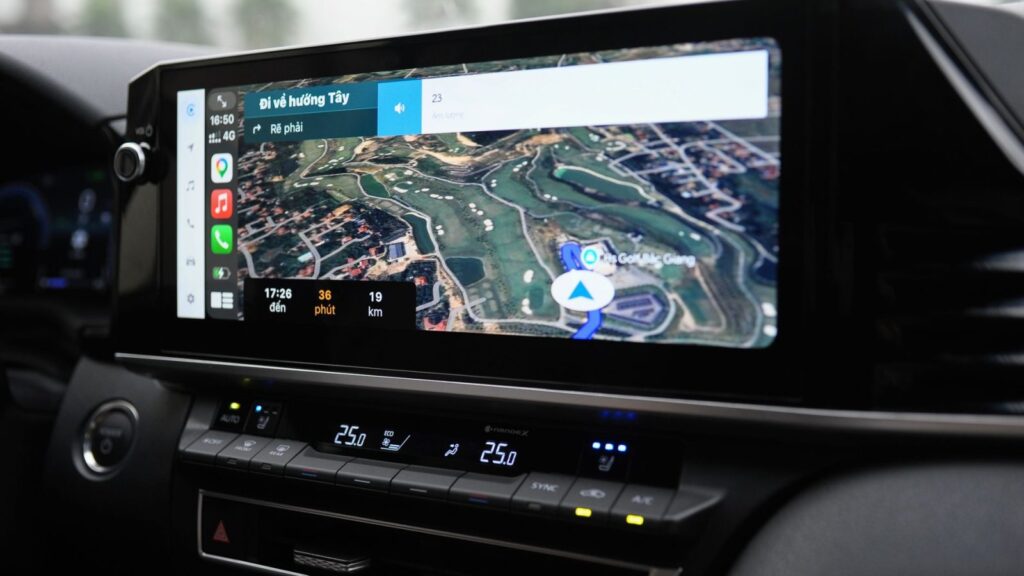
This is where customers most often make mistakes. The two systems look the same, but the SD cards are not interchangeable. In addition, Amundsen+ has internal memory, while MediaSystem 2.0 does not.
You can check the version yourself without dismantling anything: press the SETUP button and hold it for 5–10 seconds until the VERSIONS menu appears. Count the lines of information on the screen.
- 3 lines are shown, or the software version (SW Version) is 026x or 04xx – you have MediaSystem 2.0 (se2).
- 6 lines are shown, or the version is different – you have MediaSystem 2.1–2.2 (se3).
- A screenshot that you can show to the branch helps to dispel any doubts.
Before ordering, write down or photograph the VERSIONS screen – it takes less than a minute and protects you from getting the wrong card.
Which countries SEAT maps cover
The maps for RNS systems (se1–se3) are divided into two parts. The first (DVD1 or SD1) covers Ireland, Andorra, Austria, Belgium, the Czech Republic, Denmark, Great Britain, Greece, Spain, Italy, Poland, Norway, the Netherlands, Portugal, France, Slovakia, Finland, Switzerland, Sweden, Hungary, Germany and several small states. Lithuania is not included in this set.
The second (DVD2 or SD2) covers Lithuania (a detailed map), Latvia, Estonia, Poland, Romania, Bulgaria, Serbia, Croatia, Slovenia and other countries. For those driving through the Baltic states, the second set is the most important.
Please note: the se4 (DNS DX) CD list does not include the Baltic states. If you drive around Lithuania, check your system before ordering.
Factory-fitted navigation or Google Maps on your phone?
People often search for „navigation without internet”. The SEAT factory-fitted system calculates the route using the GPS signal and the maps stored on the disc or card, so it does not need a mobile connection.
Phone apps such as Google Maps work differently – they require a data connection unless the maps are downloaded in advance. The factory system update applies only to the maps shown on the car’s screen.
If you want to understand how satellite navigation calculates position in general, read the article on how a GPS navigation system works. For other car makes, see the general navigation map update page.
Other brands from the same group and portable navigation
SEAT systems are often similar to those used in other Volkswagen Group cars, but the cards and discs differ, so you cannot guess by appearance. If you have a different car, see the pages: VOLKSWAGEN navigation, ŠKODA navigation or AUDI navigation.
A separate page for owners of standalone devices about TomTom, Garmin and iGo updates.
How the SEAT navigation update works
- Identify your system. Check whether you have an RNS Mediasystem with DVD, 2.0, 2.1–2.2 or DNS DX. If you are unsure, run the SETUP–VERSIONS check and take a photo of the screen.
- Contact a branch. For car navigation enquiries, call the dedicated phone number or visit a branch in Vilnius, Kaunas, Klaipėda or Šiauliai, Mon–Fri 9:00–18:00.
- Confirm the code and set. Based on the model, year and system version, we select the code (se1–se4) and the map set.
- Agree on the price. We tell you the final amount before starting work.
- Collect and test. After inserting the new disc or card, check that the system recognises the maps and that the Lithuanian road network is shown in detail. If anything is unclear, come back to the branch.
Frequently asked questions about SEAT navigation updates
How do I find out which SEAT navigation card is right for me?
You need to know the system type (RNS Mediasystem, 2.0, 2.1–2.2 or DNS DX) as well as the car model and year. You can identify the MediaSystem version by pressing SETUP for 5–10 seconds and counting the lines in the VERSIONS menu: 3 lines – 2.0, 6 lines – 2.1–2.2.
Do SEAT maps include detailed coverage of Lithuania?
Yes, in the se1, se2 and se3 variants, Lithuania is marked as detailed in the second map set (DVD2 or SD2). The DNS DX (se4) disc list does not include the Baltic states, so please check in advance for this system.
Why is the navigation in my SEAT not working?
The most common causes are an SD card or disc that cannot be read, an unsuitable map version, or a weak GPS signal. Check that the card is fully inserted and the disc is not scratched, then contact a branch – we will help determine whether updating the maps is enough.
Does the navigation work without the internet?
Factory-fitted SEAT RNS and DNS systems work without the internet: they calculate the route using GPS and the stored maps.
Does a phone app replace updating the factory navigation?
No. A phone app works on the phone, while the factory system screen shows only the maps stored on the disc or card. If you want new roads on the car’s screen, the system maps need to be updated.
How much does a SEAT navigation update cost?
The price depends on the system (se1–se4) and the selected set. We give you the exact amount once we have identified the system type, before starting work.
When can I visit a branch?
All branches in Vilnius, Kaunas, Klaipėda and Šiauliai are open Monday to Friday 9:00–18:00 and closed at weekends. For car navigation enquiries there is a dedicated phone number, listed on the branch cards.
Is the same update suitable for another make?
No, cards and discs are made for a specific system. You can find maps for other makes on the navigation update page.